Make Focus
Automatic
HyperFocus learns what you’re working on and pulls you back when your attention drifts.
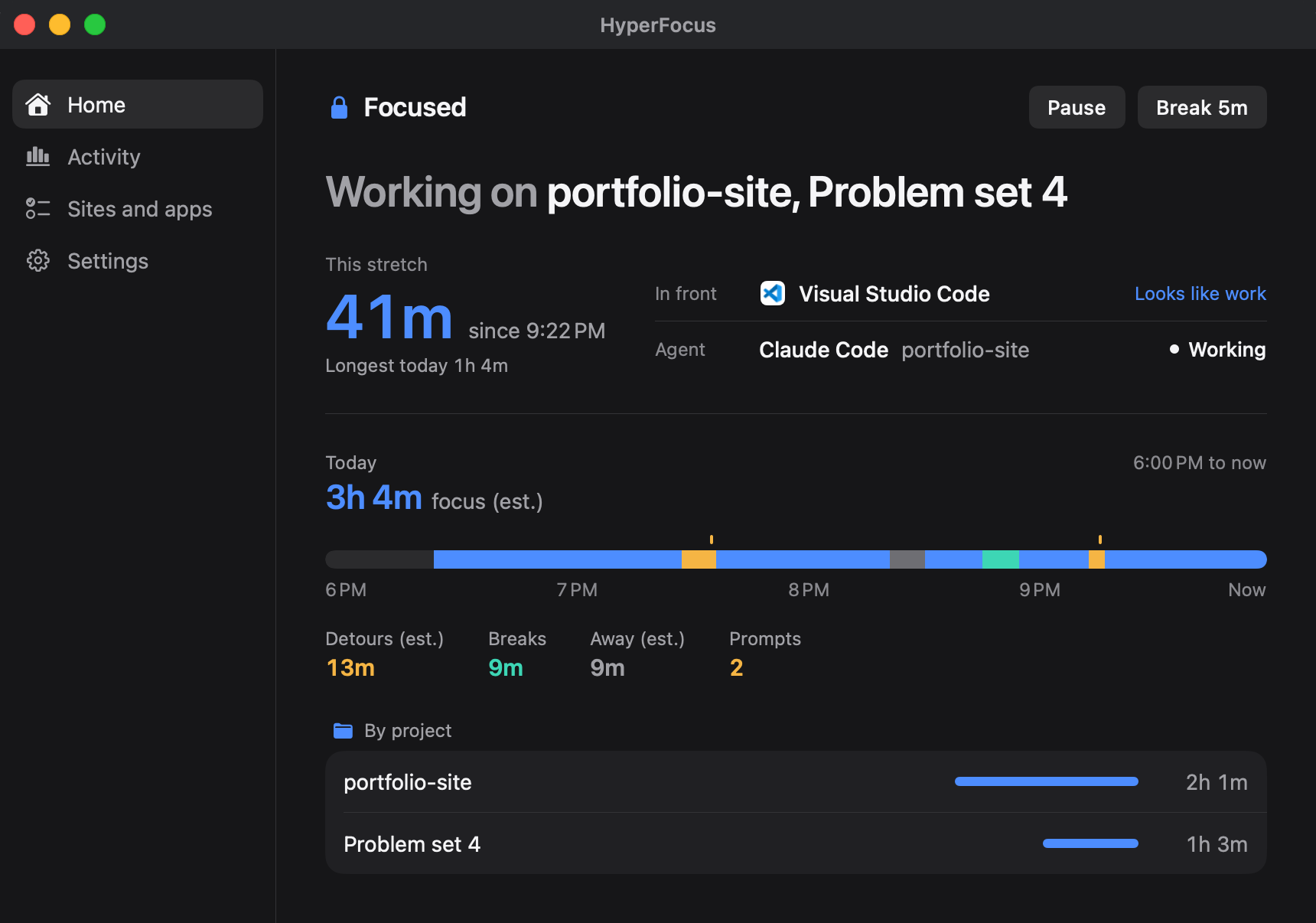
Picks up your work on its own. Window titles, folders and your coding agent tell it what you’re on. Nothing to type, nothing to start.
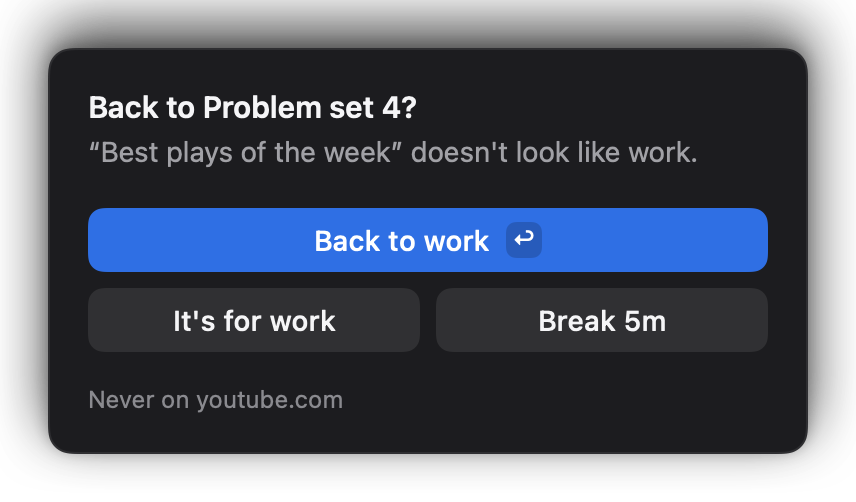
One prompt when you drift.It says what it saw. You decide what it means.
Over the tab
It covers the page and leaves it as it was.
Best plays of the week
- Top 10 goals of the month
- Every buzzer-beater this season
- Full match highlights
In any app
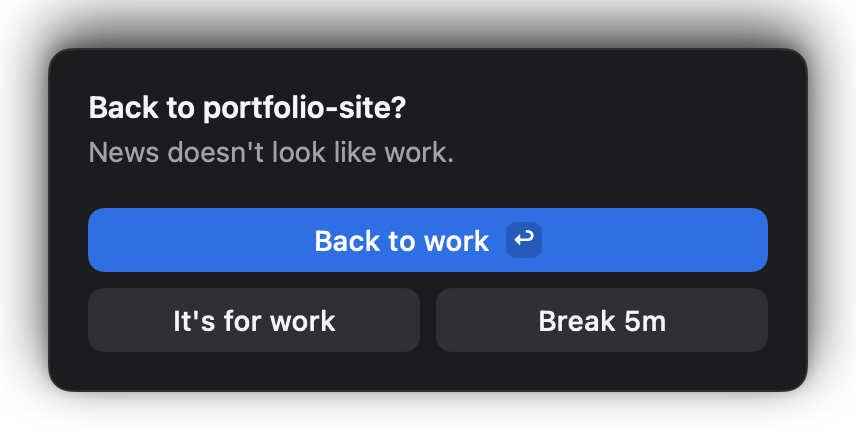
Outside the browser, it steps in over the window.
Today
The year's 25 best games
What to watch this weekend
Ten photos from the week
Takes you back
Back to work closes the tab and brings your work to the front.
- youtube.comClosed
- Problem set 4.pdfIn front
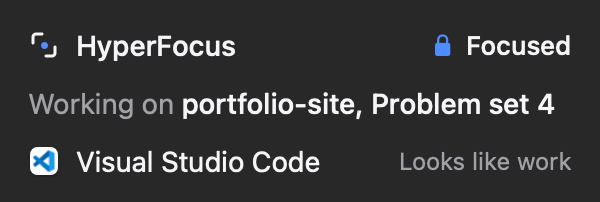
Lives in the menu bar
See what it thinks you're on, pause it, or take a break.
Your call, every time.Back to work, It's for work, a break or Esc. None of them counts against you.
Back to work. One key.
Not now. Esc closes it.
It's for work. One click, and it learns.
Break. Five minutes to an hour.
Break. Five minutes to an hour.
Not now. Esc closes it.
Back to work. One key.
It's for work. One click, and it learns.
Installing HyperFocus.macOS needs one extra step the first time.
- 1Open the zip and drag HyperFocus to Applications.
- 2Open HyperFocus. macOS stops it the first time; click Done.
- 3In System Settings › Privacy & Security, click Open Anyway and confirm.
- 4Allow Accessibility when HyperFocus asks.
On macOS 14, Control-click HyperFocus in Applications and choose Open in place of steps 2 and 3.
Each new build asks for steps 2 and 3 again.
Share usage data is on, to help improve HyperFocus. It never sends page text, messages or passwords, and you can turn it off in Settings.